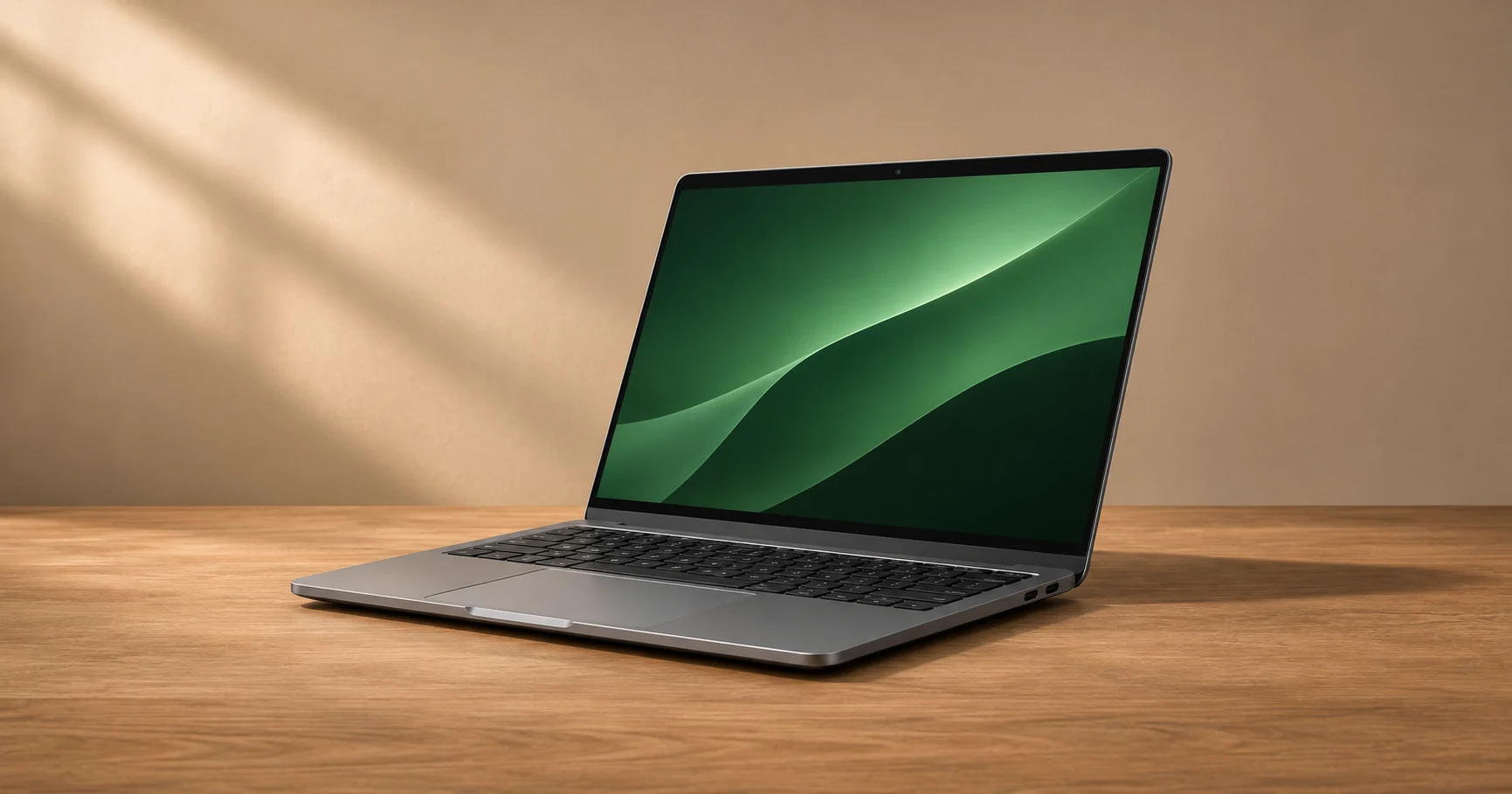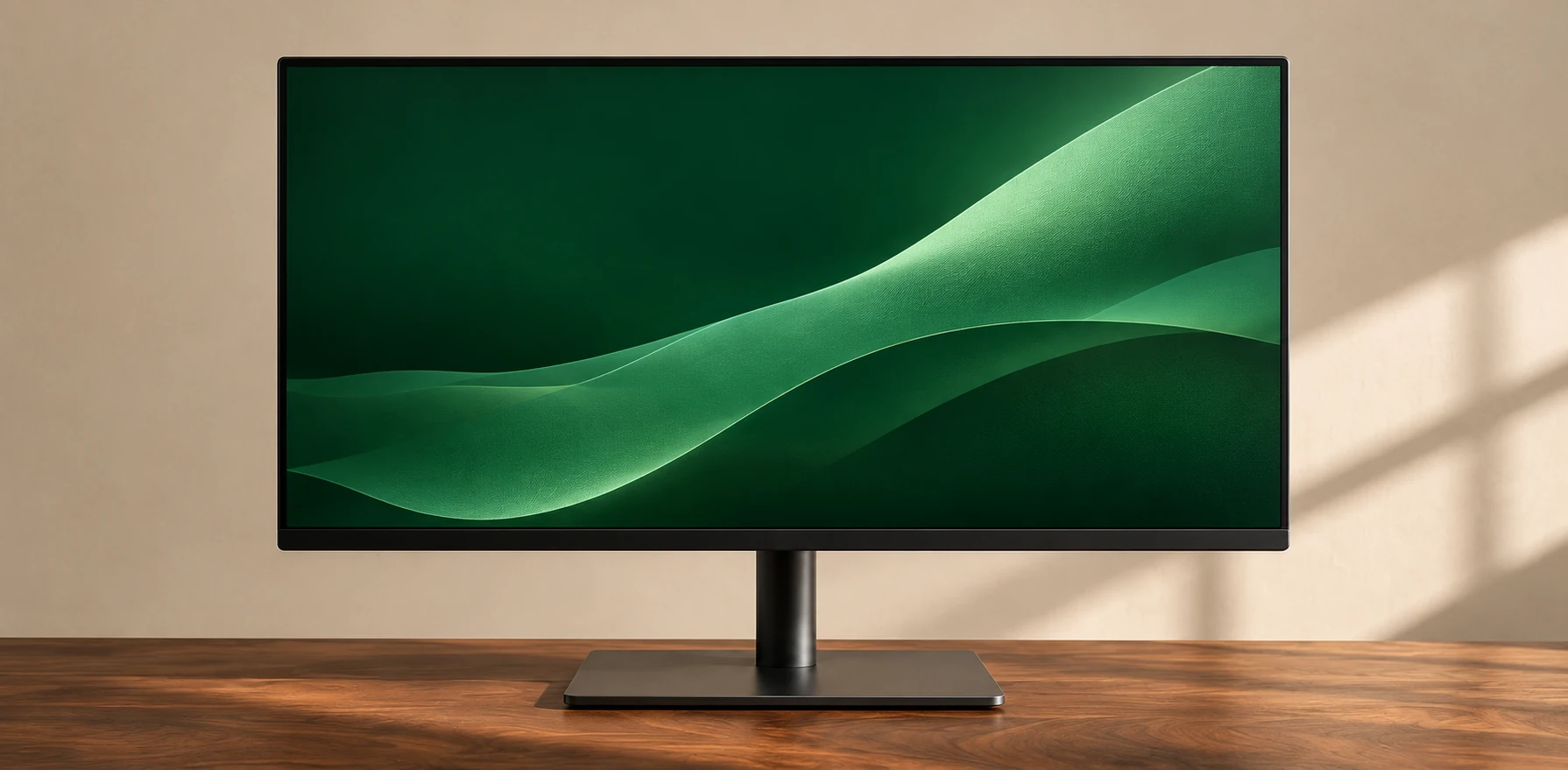
A good monitor fits the desk, the computer and the work. Start with what will be on the screen for most of the day, then check your space and connections before comparing specifications.
This is a buying guide based on documented specifications and technical sources.
Measure the desk before the screen
Measure from the edge of the desk to the wall, then account for the depth of the stand. A deeper stand may move a large panel closer than you want. If you plan to use an arm, check the mounting pattern, monitor weight without its stand and the arm’s stated limits.
Choose for the work you do
For writing, coding and spreadsheets, prioritize legible text, comfortable scaling and enough room for the windows you keep open. If you edit photos or video for a specific output, check coverage of the color space you work in and look for calibration information. For games, check supported refresh rates at the resolution and connection you will actually use.
Check the whole connection
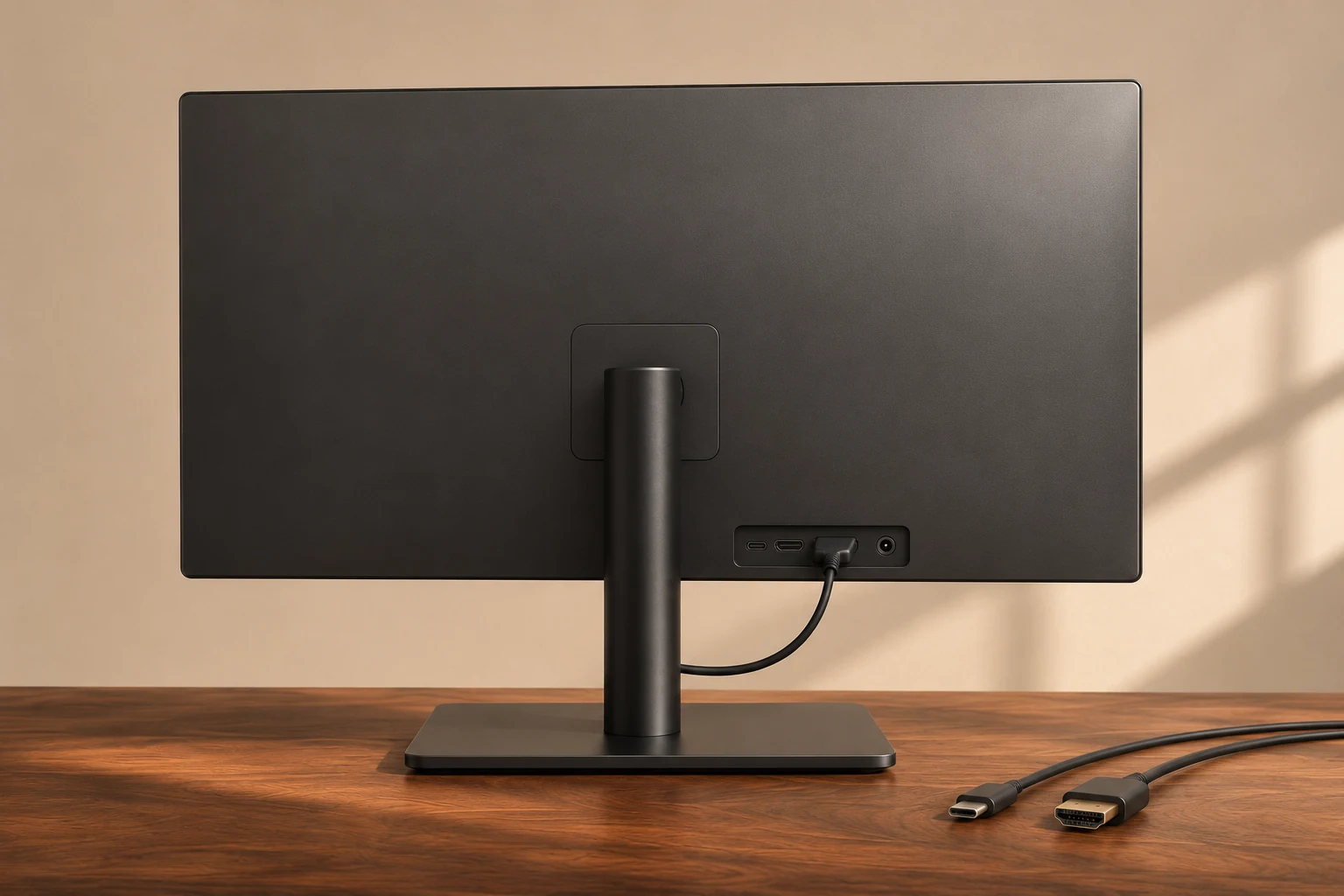
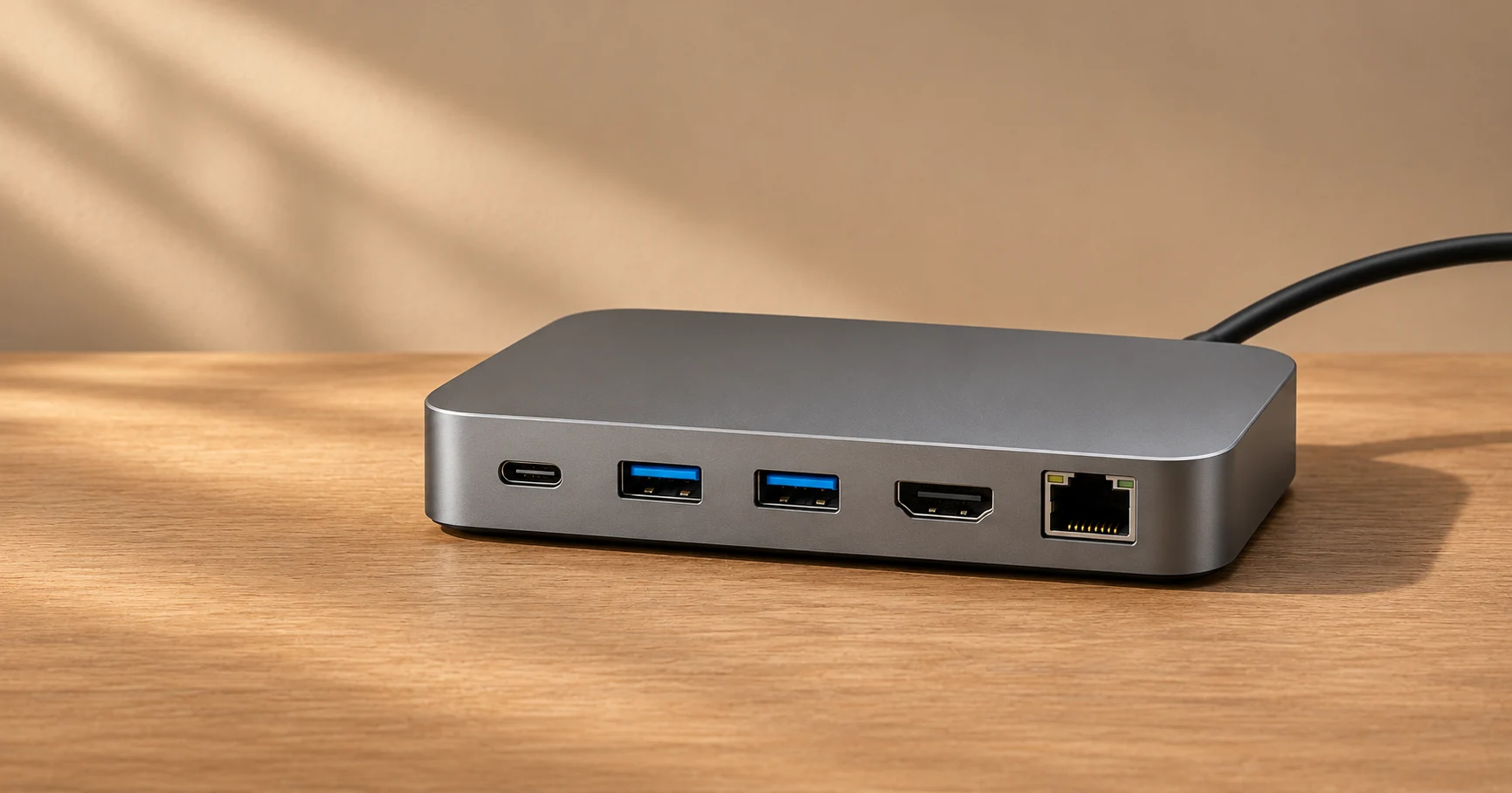
Read the monitor and computer manuals together. If one-cable docking matters, confirm video support, USB data and the charging power the monitor can deliver through its upstream USB-C port. The same connector can offer different capabilities, and the cable has to support the combination too.
Pros
A larger, sharper panel can make two documents easier to compare. A height-adjustable stand or compatible arm gives you more control over placement.
Trade-offs
Size costs desk depth, and additional resolution may mean adjusting display scaling. Features such as USB-C charging only help when they match your computer.
Who it suits
Anyone replacing a home-office display or choosing one screen for both a laptop and a desktop.
Conclusion
Make a shortlist from desk fit, readable text and a verified connection. Use features such as extra refresh rate to choose between the models that pass those checks.